Kinship: Keep track of people, conversations, and tasks without breaking your train of thought.
A self-hosted web app for one person that brings your contacts, notes, and to-do board together in one place. Just write naturally and tag people with @ or tasks with [[, and Kinship connects everything automatically. You can run the full stack in Docker (docker compose up -d) or run it directly with npm (npm run dev / npm start) against a local PostgreSQL database.
Inside Kinship
Click through the thumbnails below to see the daily dashboard, interactive 3D relationship map, contact pages, timeline of notes, and task board. Click any main image to enlarge it.
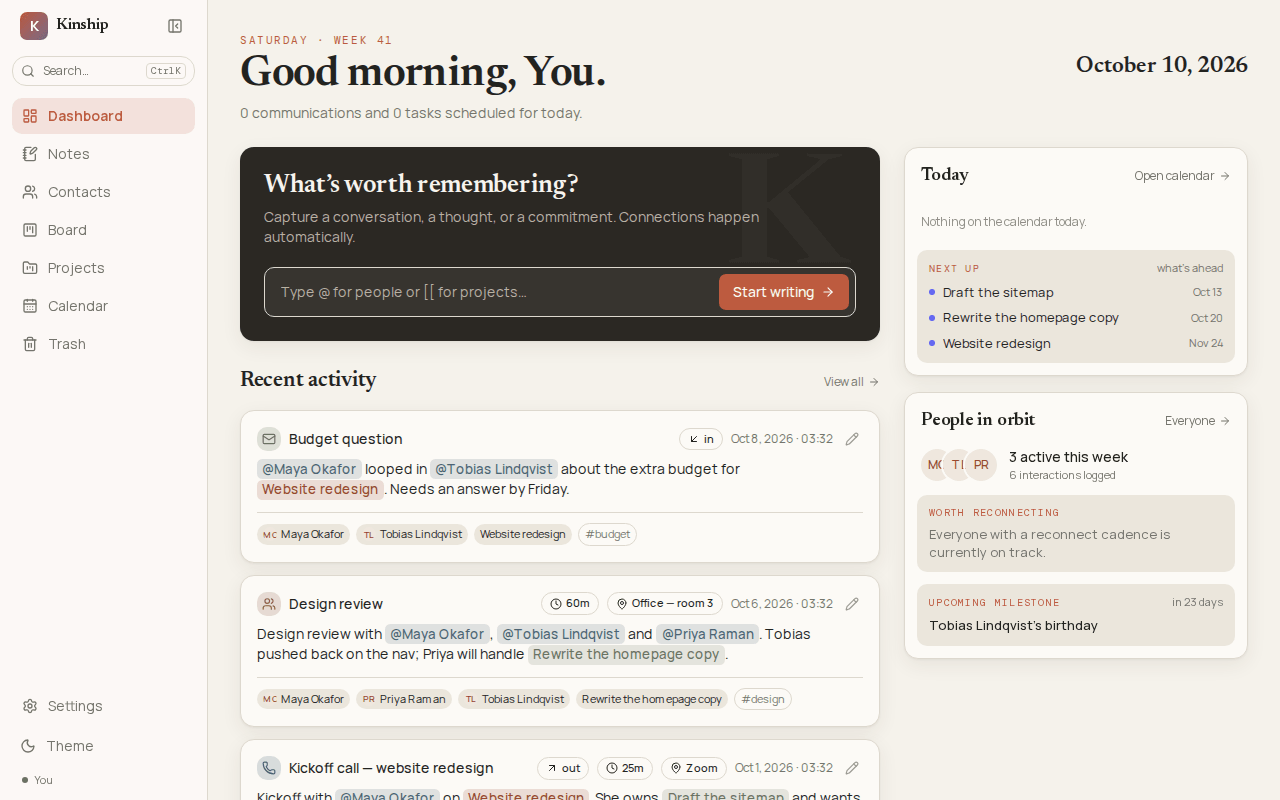
Today Page: Shows what's due today, people you wanted to follow up with, upcoming birthdays or milestones, and a quick box to jot down a note right away.
Click Image to Zoom ⤢Solving the "Three Separate Apps" Problem
Keeping track of people and promises shouldn't feel like filling out tax forms.
Normally, your contacts live in an address book, your notes live in a notes app, and your to-dos live on a separate task board. None of them talk to each other.
Even worse, most contact managers force you to stop and fill out a new person's profile before you can write down a quick note about a call you just had. That interruption is enough to make most people stop taking notes altogether.
I designed Kinship so you never have to stop mid-thought. You just write your note, type @ to tag a person, and type [[ to tag a task or project. If you tag a new person or task that doesn't exist yet, Kinship creates a starter record for them on the spot, saves your note immediately, and queues up a prompt to finish building out that new contact profile or task when you're ready.
Who You Know
Contact pages with phone/email channels (and which one they prefer), job history, important dates, and personal context.
What Was Said
A single timeline for notes, calls, emails, texts, and meetings, so you can always see when you last talked.
What's Owed
A drag-and-drop Kanban task board where every task links back to the person and conversation that sparked it.
How Kinship Works
Tagging people and tasks on the fly, exploring your network on an interactive 3D map, working safely with AI assistants, and keeping your data private on your own computer.
1. Write Your Note Now, Build Out New Profiles Later
Jot Down a Note
Write a quick note or call log and tag people with @Name or tasks with [[Task]] from the inline menu.
Create Starter Records
Existing contacts and tasks link right away. If you tag a new person or task, choosing Create makes a starter record for them on the spot.
Queued for Later
Once your note is saved, Kinship queues up a reminder to build out the new person's contact profile or set a due date on the new task.
Everything in Sync
Your note now appears on that person's profile, on the project board, and on the 3D map automatically.
2. Explore Your Connections on an Interactive 3D Map
As you add notes, contacts, projects, and tasks, Kinship builds an interactive 3D map of everything in your workspace. Each type of record is color-coded (People, Projects, Notes, Tasks, and Tags) and linked to the items it relates to.
Spot How Things Connect
Hover over or click any orb to light up its direct connections and dim the rest of the map so you can see who is involved in what.
Walk Through Your Network
Selecting an item opens a side panel listing every connected person, note, and task so you can click from one connection to the next.
Day & Night Themes
Adjust orb size, glow, and spacing live with the map controls, and switch between a warm paper look by day and a night sky in dark mode.
3. Built to Work Safely with Your AI Assistant
If you use a local AI tool on your computer (such as Claude Code, Claude Desktop, Codex, or Hermes Agent), it can connect directly to Kinship to help you find people, summarize past conversations, log new notes, or update tasks. To keep your data safe when an AI assistant is connected, I built in simple, common-sense protections:
| Protection | How It Works | Why It's Useful |
|---|---|---|
| No Permanent Deletions by AI | If an AI assistant removes an item, it only goes to the Trash folder where you can restore it anytime. |
An AI mistake can never permanently erase a contact or note. |
| Easy Access Controls | You can switch AI access between Read & Write, Read Only, or Off right in Settings. | Lets you decide whether your AI can make changes or just look things up. |
| Local Computer Only | Kinship only listens on your own computer (127.0.0.1) and blocks requests from outside websites. |
Your personal contacts and notes are never exposed to the internet. |